In case you notice a strange behaviour in EDUC Learning trying to watch Panopto videos, you might want to check if the third party cooking are enable in your browser. This is needed to get access to those videos after having logged in EDUC Learning.
Depending on your browser, by following the instruction below, you should solve the issue:
1. Enable Third-Party Cookies in Chrome
1.1. On your computer, open Google Chrome.
1.2. From the top right, select the three vertical dots and then Settings (Fig.1).
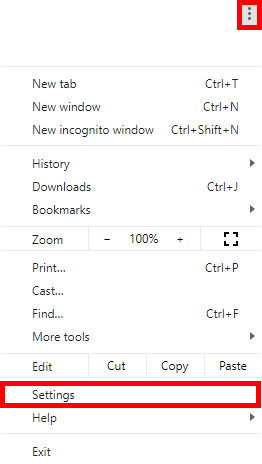 Figure 1
1.3. Select Privacy and Security from the left-hand navigation (Fig. 2).
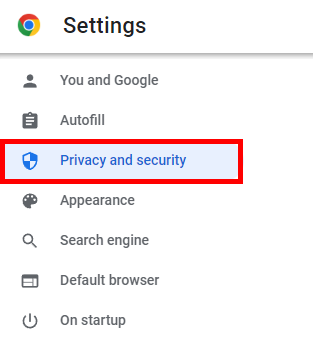 Figure 2
1.4. Select Third-party cookies (Fig. 4).
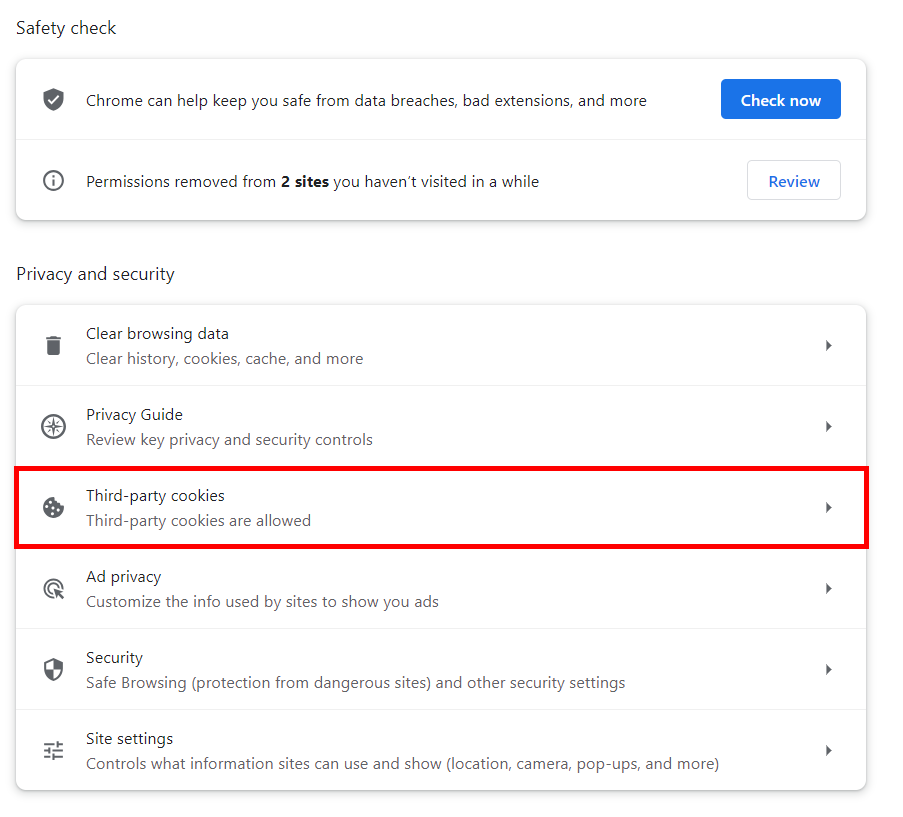 Figure 4
1.6. On the Cookies and Site Data page, select Allow third-party cookies (Fig. 5).
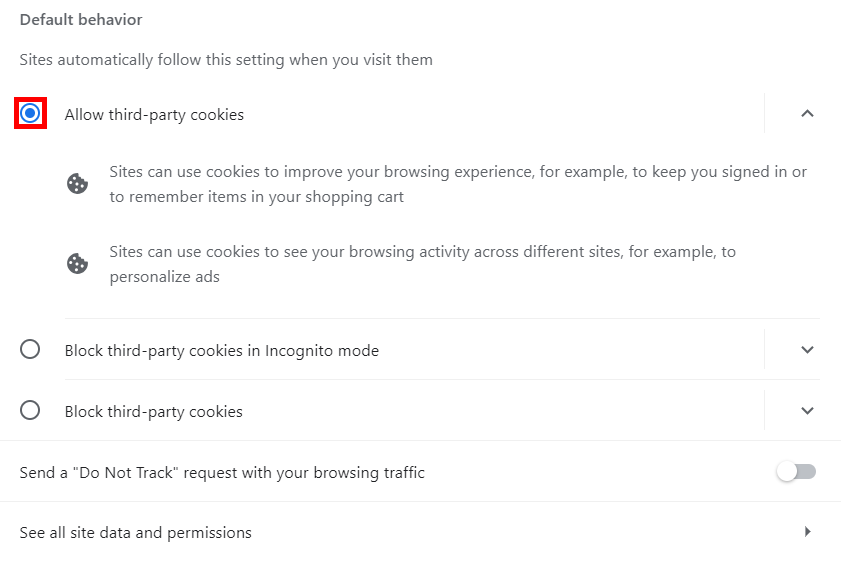 Figure 5
2. Enable Third Party Cookies in Chrome on iOS
2.1. Open your device's Settings, locate and select Chrome from the left-hand navigation, and place the toggle for the option Allow Cross-Website Tracking in the on position (Fig. 6). The following is on an iOS device using version 18.1.1.
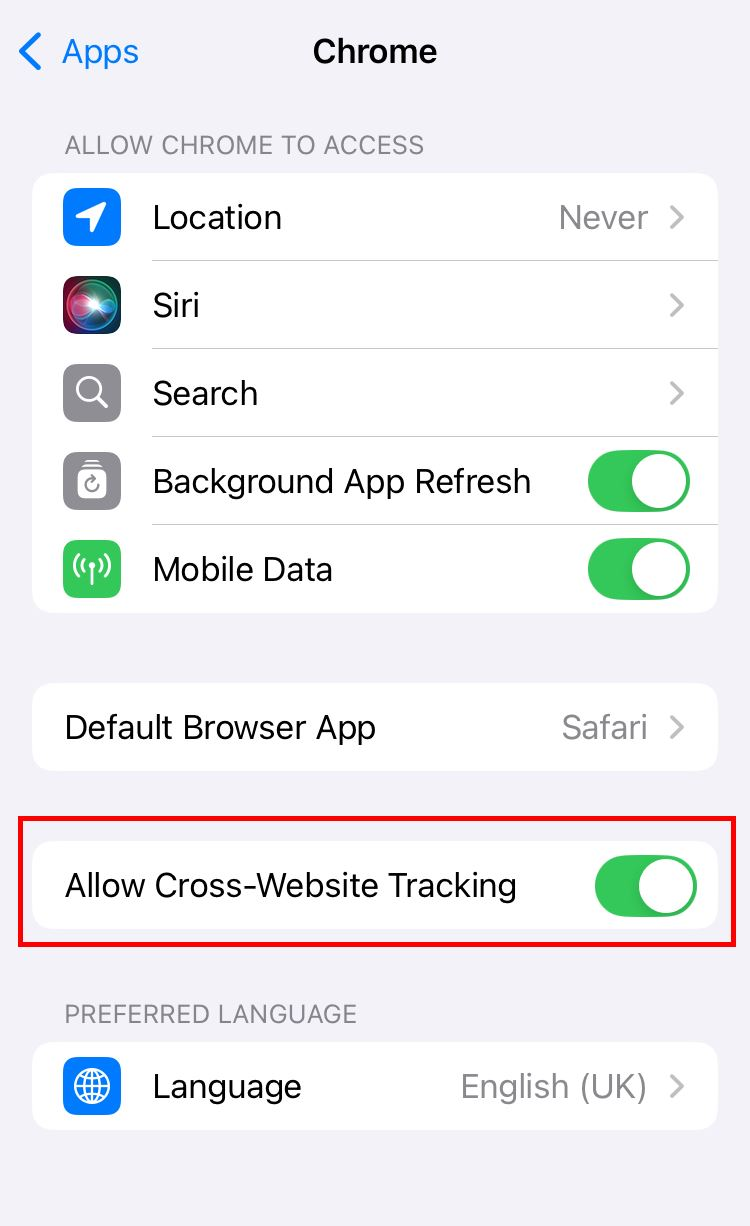 Figure 8
3. Enable Third Party Cookies in Firefox
3.1. Select the three vertical lines in the top right corner, and select Settings (Fig. 9).
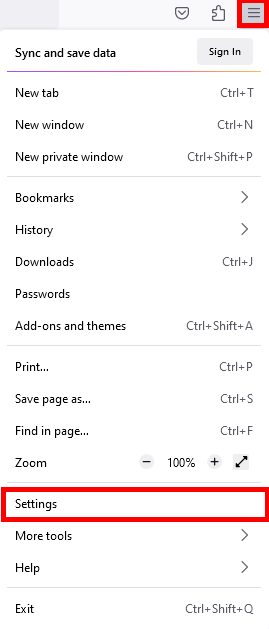 Figure 9
3.2. In the right-hand menu, select Privacy & Security (Fig. 10).
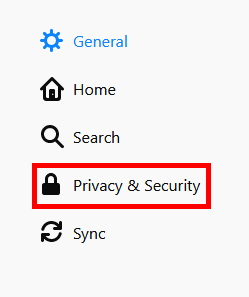 Figure 10
3.3. On the Browser Privacy page, select the Custom drop-down menu. Make sure that the checkbox next to Cookies is unchecked (Fig. 11).
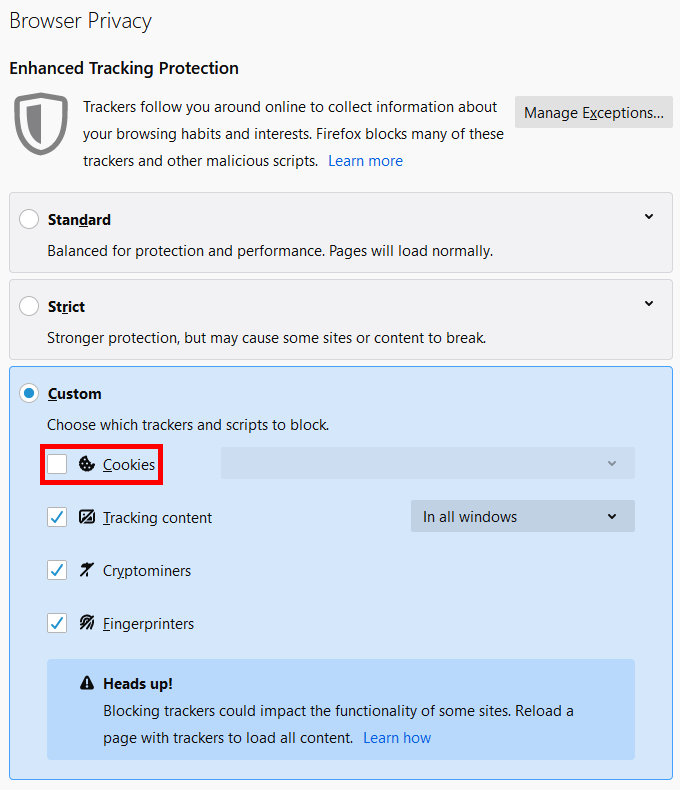 Figure 11
4. Enable Third Party Cookies in Internet Explorer
4.1. Click the gear icon in the top right-hand corner of Internet Explorer (Fig. 12).
 Figure 12
4.2. Click Internet Options (Fig. 13).
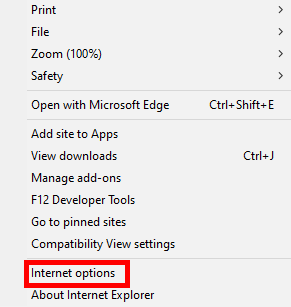 Figure 13
4.3. Select the Privacy tab and then Advanced Settings (Fig. 14).
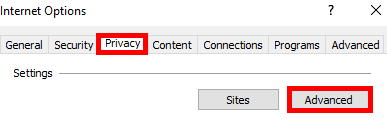 Figure 14
4.4. Under Third Party Cookies, select Accept and then OK (Fig. 15).
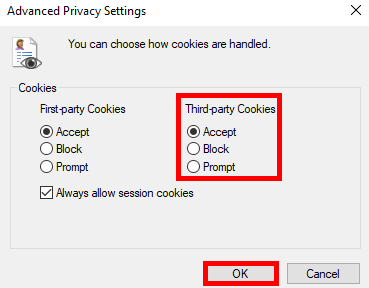 Figure 15
5. Enable Third Party Cookies in Edge
5.1. In the top right corner, select the ellipses ... and then select Settings (Fig. 16).
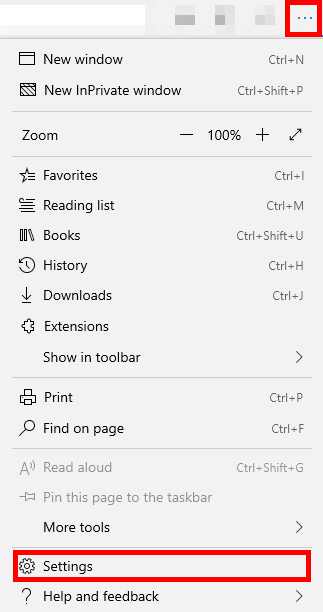 Figure 16
5.2. Select Cookies and site permissions (Fig. 17).
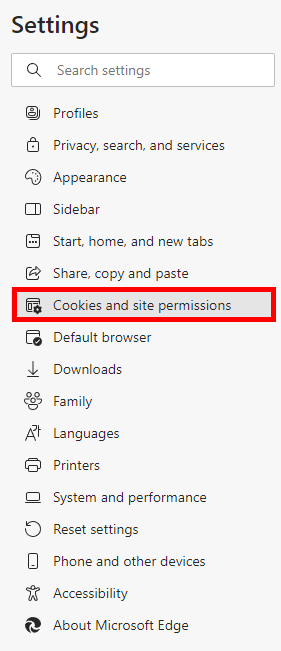 Figure 17
5.3. Select Manage and delete cookies and site data (Fig. 18).
 Figure 18
5.4. Make sure the toggle to the right of Block third-party cookies is off (Fig. 19).
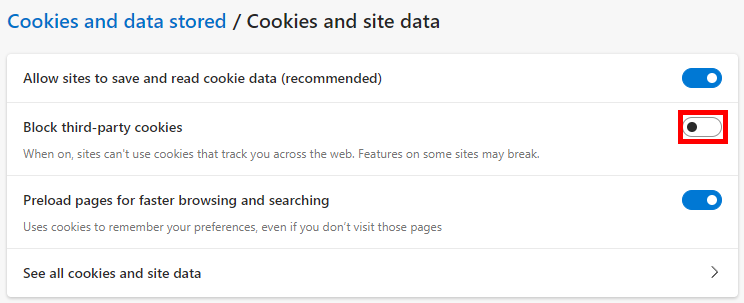 Figure 19
6. Enable Third Party Cookies in Safari
*Please note: as of Safari 13.1, third-party cookies are blocked by default. This has led to an issue where Safari may not support interaction between Panopto and an LMS without first enabling third-party cookies. Panopto is working to correct this issue; however, we are recommending that Safari users enable third-party cookies at this time. For more information, visit Webkit's article: *Full Third-Party Cookie Blocking and More.
6.1. Open Safari and go to the left-hand corner. Expand the Safari menu and select Preferences from the drop-down menu that appears (Fig. 20).
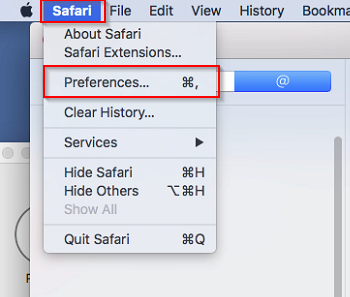 Figure 20
6.2. Navigate to the Privacy Tab and make sure "Prevent cross-site tracking" is deselected (Fig. 21).
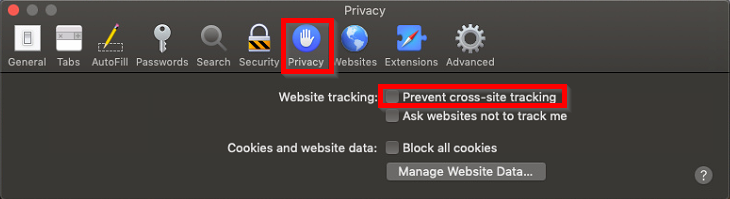 Figure 21
7. Enable Third-Party Cookies for Safari on iOS
*Please note: As of Safari 13.1, third-party cookies are blocked by default. This has led to an issue where Safari may not support interaction between Panopto and an LMS without first enabling third-party cookies. Panopto is working to correct this issue; however, we are recommending that Safari users enable third-party cookies at this time. For more information, visit Webkit's article: *Full Third-Party Cookie Blocking and More. Additionally, you may need to disable pop-up blockers or enable pop-ups on an iPhone under Safari, which should also include the web view for iOS apps. This will help with using third-party applications that are blocked from logging into Panopto.
7.1. On your device's Settings, select Safari from the left-hand navigation. Scroll down to Privacy & Security, and make sure that the toggle for Prevent Cross-Site Tracking is toggled in the Off position (Fig. 22). The following is on an iOS device using version 18.1.1.
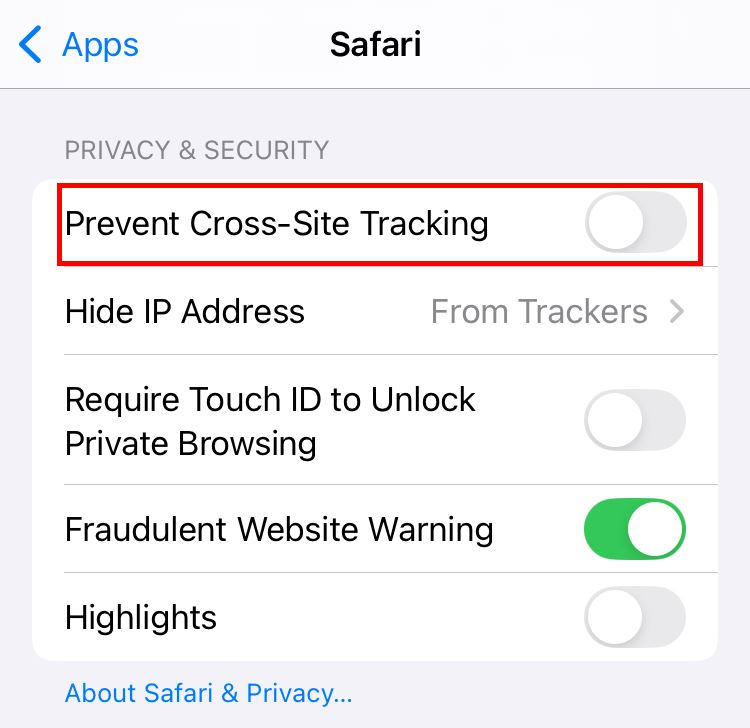 Figure 22